
Manage Leads
Once your campaign is running, you'll want to monitor and manage the leads enrolled in it. This guide covers everything you need to know about working with leads.
Viewing Enrolled Leads
From a Campaign
To see leads in a specific campaign:
- Go to Campaigns and select your campaign
- Click the Leads tab
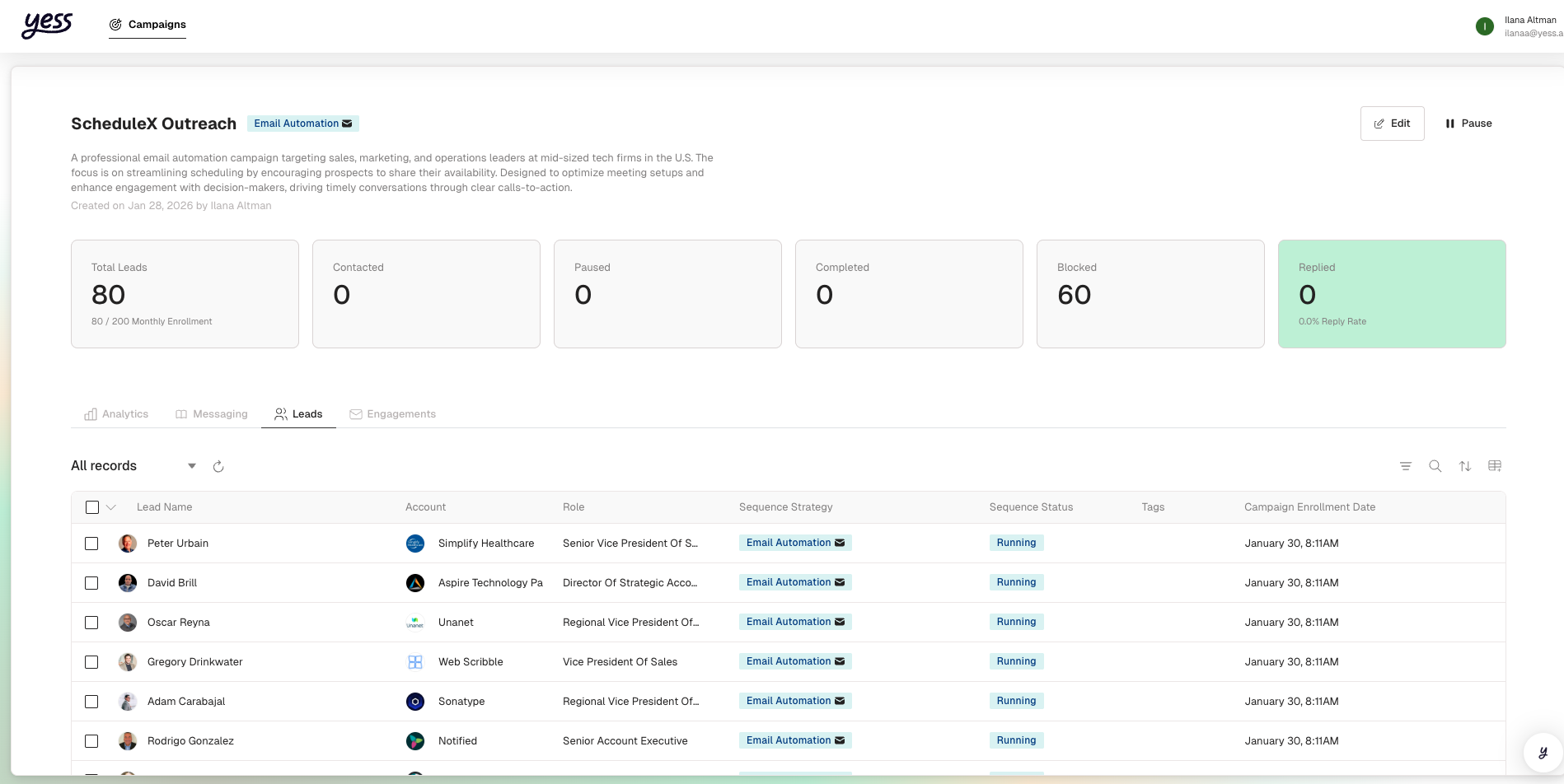
- You'll see all enrolled leads with their status
Lead List View
The lead list shows:
| Column | Description |
|---|---|
| Name | Lead's full name |
| Company | Their company name |
| Title | Job title/role |
| Status | Current sequence status |
| Enrolled | When they were added to the campaign |
Understanding Lead Statuses
Each lead has a status showing where they are in the sequence:
In Progress
Lead is actively moving through the sequence. Messages are being sent according to the schedule.
Paused
Sequence is temporarily stopped. No messages will be sent until resumed.
Completed
Lead has gone through all steps in the sequence. No more automated outreach.
Replied
Lead responded to your outreach. Sequence paused automatically for you to engage.
Blocked
Lead cannot be contacted. Missing email/LinkedIn or opted out.
Filtering Leads
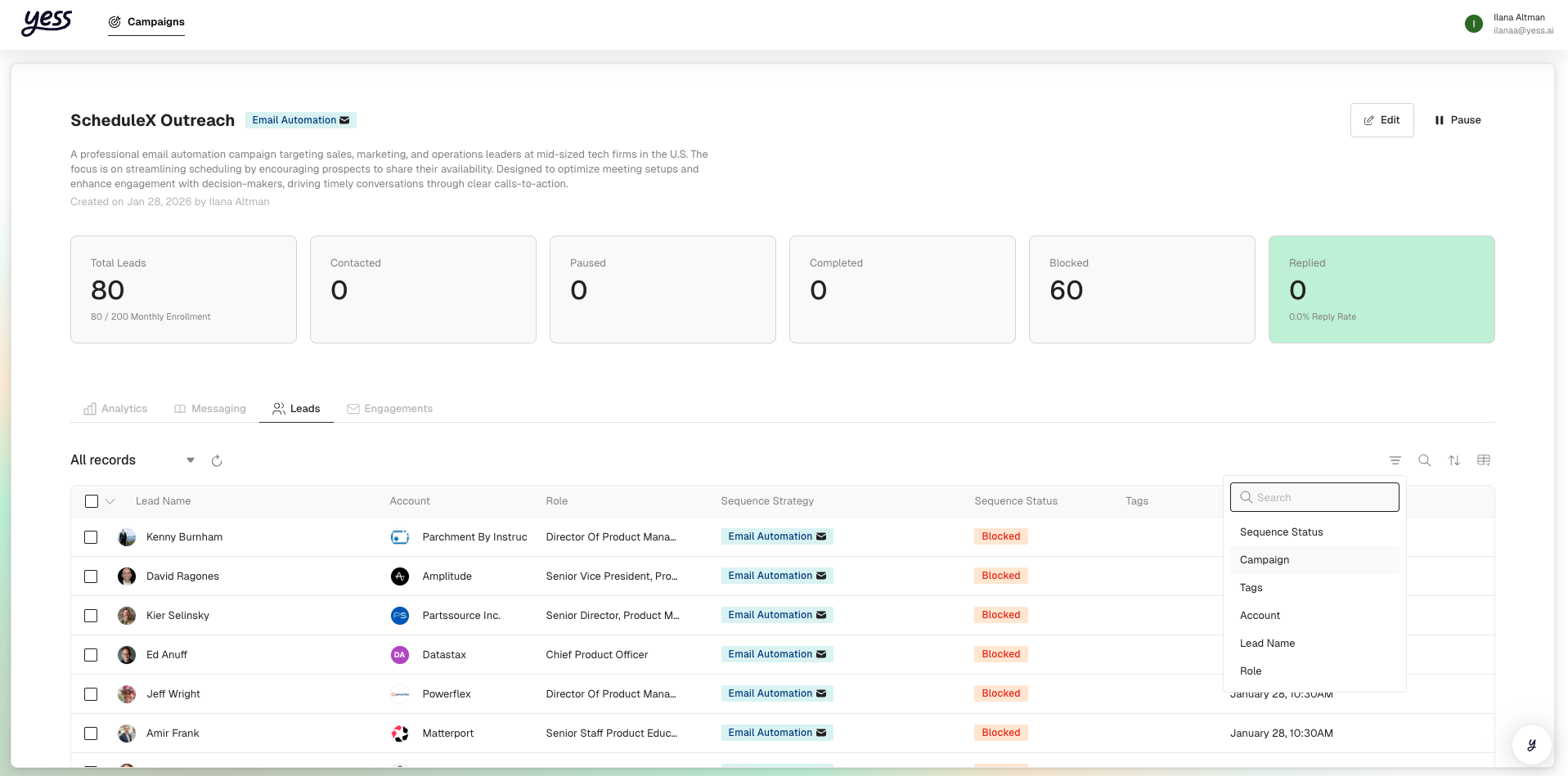
Use filters to find specific leads:
By Status
Click the status dropdown to filter:
- All leads
- In progress
- Paused
- Completed
- Replied
- Blocked
By Search
Search for leads by:
- Name
- Company name
Advanced Filters
You can also filter by:
- Company size
- Industry
- Location
- Date enrolled
Managing Individual Leads
Viewing Lead Details
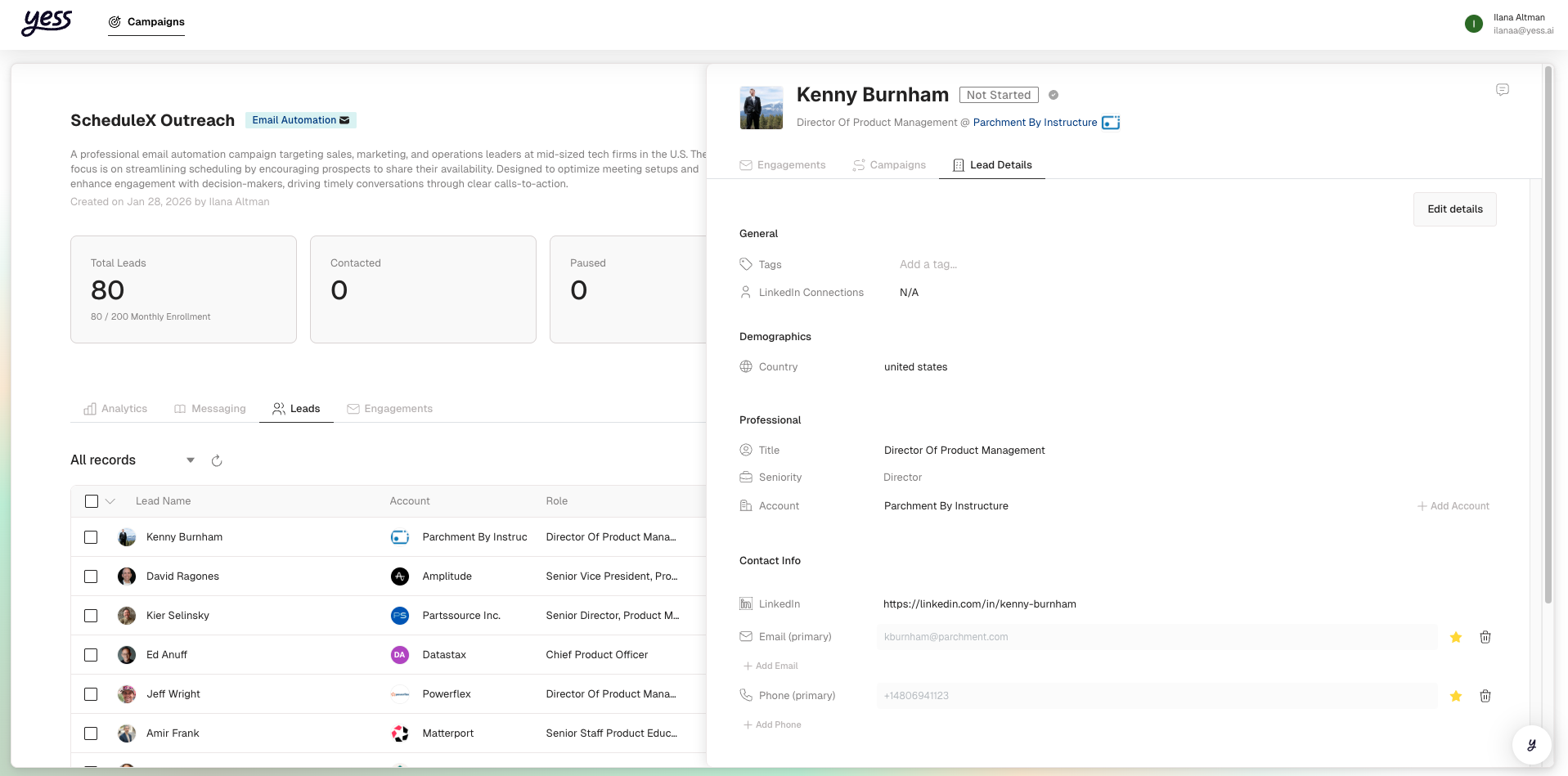
Click on any lead to see their full profile:
- Contact Information: Email, LinkedIn, phone
- Company Details: Company name, industry, size
- Engagement History: All messages sent and received
- Current Status: Where they are in the sequence
Pausing a Lead
Need to stop outreach to a specific lead? Pause them:
Locate the lead in your campaign's lead list.
Click the ... menu or Pause button next to the lead.
The lead's status changes to Paused.
What happens when you pause:
- No more messages will be sent
- Any pending messages are held
- You can resume at any time
Resuming a Lead
To restart outreach to a paused lead:
- Find the paused lead
- Click Resume
- The sequence continues from where it left off
When you resume, the lead picks up at their last position in the sequence—they won't restart from the beginning.
Retrying Failed Leads
If a lead's engagement failed (e.g., email bounced), you can retry:
- Find the lead with error status
- Check the error reason
- If the issue is resolved, click Retry
Common retry scenarios:
- Temporary email delivery issues
- LinkedIn connection temporarily unavailable
- Integration was reconnected
Bulk Actions
Manage multiple leads at once:
Select Multiple Leads
- Check the boxes next to leads you want to manage
- Or click Select All to select all visible leads
Available Bulk Actions
| Action | Description |
|---|---|
| Pause All | Stop sequences for all selected leads |
| Resume All | Restart sequences for all selected leads |
| Retry All | Retry failed engagements for selected leads |
Pausing All Leads
To pause all leads in a campaign:
- Go to the campaign's Leads tab
- Click Select All
- Click Pause Selected
- Confirm the action
Pausing all leads stops all outreach for this campaign. Consider pausing the campaign itself if you want to stop everything temporarily.
Lead Engagement History
Viewing Engagement History
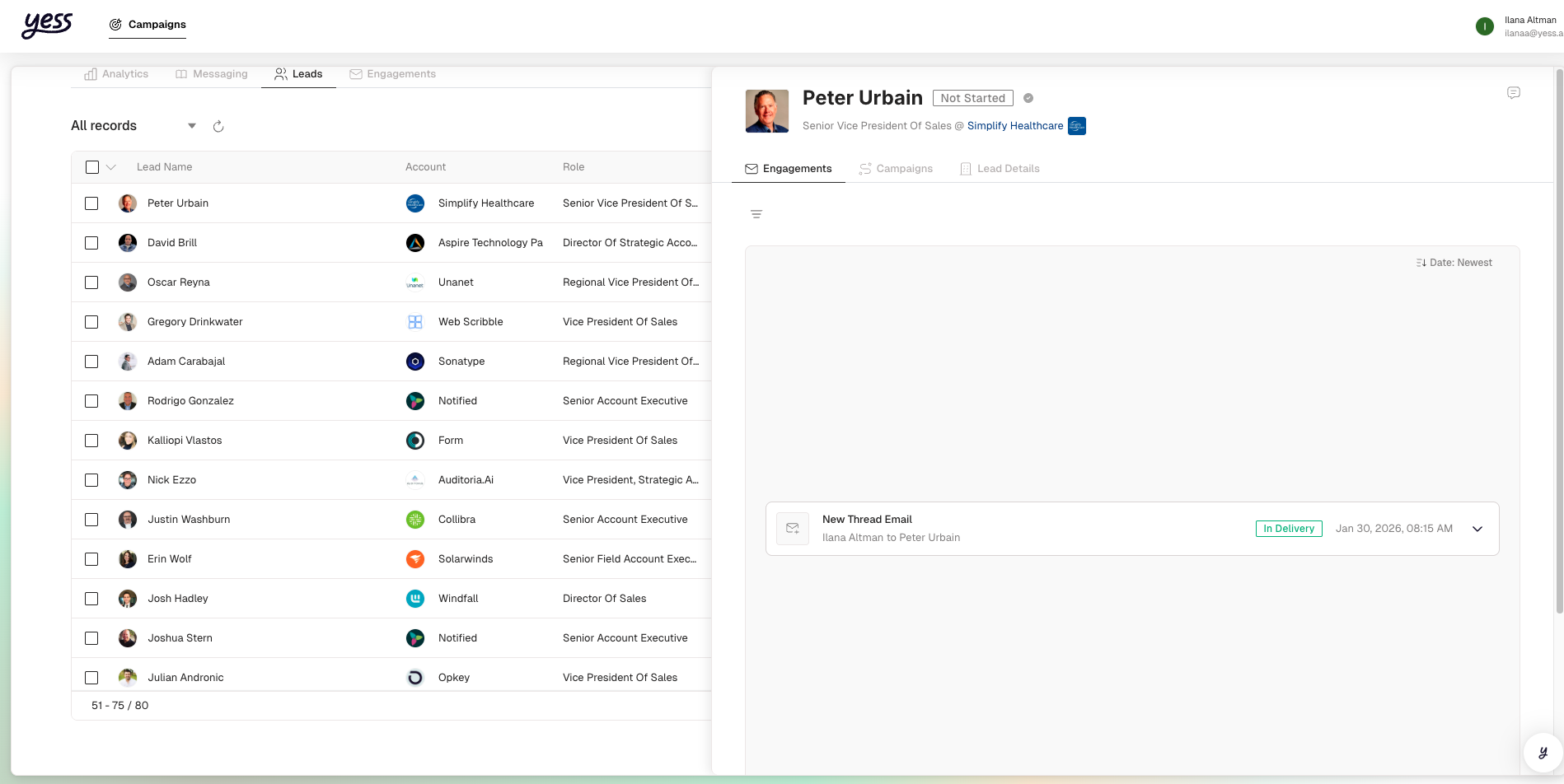
For any lead, you can see their complete engagement history:
- Click on the lead to open their profile
- Scroll to the Engagements section
- See all messages sent and received
Each engagement shows:
- Message type (email, LinkedIn)
- Content sent
- Status (sent, opened, replied)
- Timestamp
Understanding Engagement Flow
A typical lead's journey might look like:
Day 0: Email sent ✅
Day 0: Email opened ✅
Day 3: LinkedIn connection sent ✅
Day 4: LinkedIn connection accepted ✅
Day 6: Follow-up email sent ✅
Day 7: Reply received 💬
Handling Replied Leads
When a lead replies:
- Notification: You're alerted via dashboard/email
- Auto-Pause: Their sequence pauses automatically
- Status Update: Lead status changes to "Replied"
What to Do Next
Check what the lead said. Look at sentiment (positive, neutral, negative).
Reply through your email or LinkedIn directly. This keeps the conversation authentic.
If the conversation continues, the lead stays in "Replied" status. No further automated outreach will occur.
Blocked Leads
A lead is blocked when they can't be contacted. Reasons include:
| Reason | Solution |
|---|---|
| No email address | Add email or rely on LinkedIn only |
| Invalid email | Update with correct email |
| No LinkedIn profile | Rely on email only |
| Opted out | Cannot contact—respect their preference |
| Already in another campaign | Remove from one campaign to add to another |
Viewing Blocked Leads
- Filter by "Blocked" status
- Click on a lead to see the specific reason
- Resolve the issue if possible
Best Practices
Monitor Daily
Check your leads daily, especially early in a campaign, to catch issues quickly.
Respond to Replies Promptly
When leads reply, respond within 24 hours to maintain momentum.
Use Filters
Use filters to focus on leads that need attention (replied, blocked).
Don't Over-Pause
Only pause leads when necessary. Pausing too many disrupts your campaign flow.
Related Guides
- Review Engagements — Approving messages before they send
- Track Performance — Analyzing lead engagement
- Audiences and Leads — Understanding lead concepts