
Engagements
An engagement is a single outreach action—an email sent, a LinkedIn message delivered, or a connection request made. Engagements are the individual touchpoints that make up your sequences.
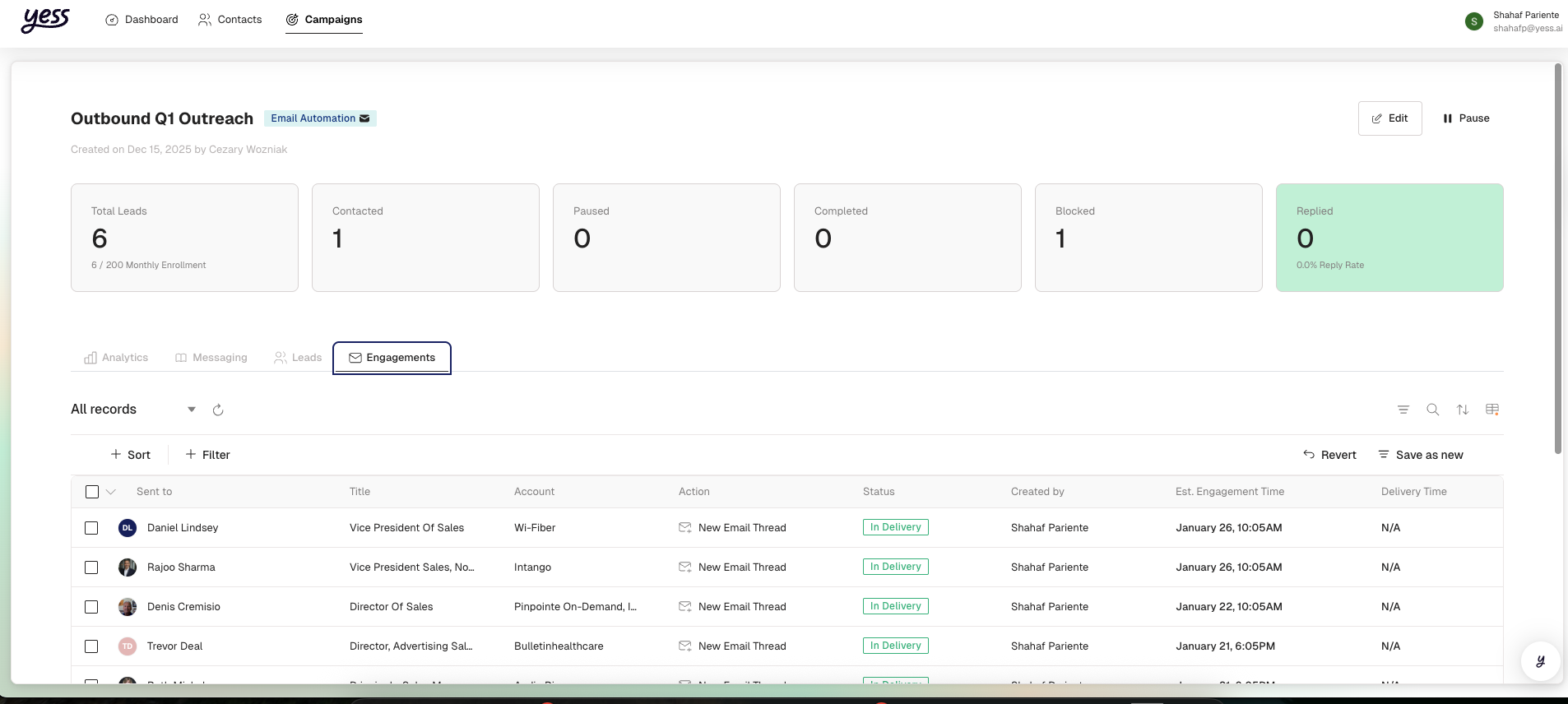
What is an Engagement?
Every time the system contacts a lead, it creates an engagement. Each engagement tracks:
- Who: The lead being contacted
- What: The type of action (email, LinkedIn message, etc.)
- When: When it was sent or scheduled
- Status: Whether it's pending, sent, or has received a reply
- Content: The actual message that was sent
Types of Engagements
Email Engagements
| Type | Description |
|---|---|
| New Email | First email in a conversation |
| Follow-up Email | Subsequent email in the same thread |
| Reply Email | Your response to a lead's reply |
LinkedIn Engagements
| Type | Description |
|---|---|
| Connection Request | Invitation to connect (with personalized note) |
| Direct Message | Message to a 1st-degree connection |
| InMail | Message to anyone (requires Sales Navigator) |
Engagement Lifecycle
Every engagement moves through a lifecycle:
Status Meanings
| Status | What It Means |
|---|---|
| Pending Approval | Waiting for you to review and approve |
| Pending Delivery | Approved and scheduled to send |
| Sent | Successfully delivered |
| Got Reply | Lead responded to this message |
| Error | Failed to send (see reason) |
| Declined | You chose not to send this message |
The Approval Workflow
If your campaign has approval mode enabled, you can review engagements before they're sent.
Reviewing Pending Engagements
- Navigate to Engagements or check notifications for pending items
- Review the AI-generated message content
- See the research that informed the personalization
- Choose to Approve, Edit, or Decline
What You Can Do
Approve
Send the message as-is. It will be delivered according to the schedule.
Edit
Modify the message before sending. Great for fine-tuning.
Decline
Don't send this message. The sequence will skip to the next step.
Approval mode is recommended for new campaigns so you can see how the AI is crafting messages and refine your guidance.
Engagement Content
What the AI Creates
For each engagement, the AI generates:
- Subject line (for emails): Personalized to the lead
- Message body: Tailored using research and your guidance
- Icebreaker: Opening line referencing something specific to the lead
How Personalization Works
The message is personalized based on:
- Lead's profile: Name, title, company, role
- Company research: Recent news, achievements, announcements
- Your guidance: Tone, talking points, call-to-action
- Sequence context: Whether it's a first touch or follow-up
Example personalization:
"Hi Sarah, I noticed Acme Corp just expanded into the European market—congratulations on that growth. Given your role leading the sales team, I thought you might be interested in how we're helping similar companies..."
Tracking Engagement Performance
Delivery Tracking
For sent engagements, you can see:
| Metric | Description |
|---|---|
| Sent At | When the message was delivered |
| Opened | Whether the email was opened (email only) |
| Clicked | Whether links were clicked (email only) |
| Connected | Whether connection was accepted (LinkedIn) |
Reply Tracking
When a lead replies, the engagement status updates to Got Reply and you're notified. The system also analyzes reply sentiment:
| Sentiment | Description |
|---|---|
| Positive | Lead is interested, wants to learn more |
| Neutral | Lead has questions, unclear interest level |
| Negative | Lead is not interested |
| Out of Office | Automated reply, lead is away |
Handling Replies
When a lead replies:
- You're notified via the dashboard and optionally email/Slack
- Sequence pauses for that lead automatically
- You respond personally through your email or LinkedIn
- Continue or complete the sequence based on the conversation
Replies come directly to your inbox (email) or LinkedIn messages. YESS captures the reply for tracking but doesn't intercept your conversations.
Engagement Errors
Sometimes engagements fail to send. Common reasons:
| Error | Cause | Resolution |
|---|---|---|
| Email Bounced | Invalid email address | Update lead's email or remove from campaign |
| LinkedIn Failed | Connection issue or limit reached | Wait and retry, or check LinkedIn status |
| Integration Expired | Your connection needs renewal | Reconnect the channel in Settings |
Retrying Failed Engagements
For temporary failures, you can retry:
- Find the failed engagement
- Check the error reason
- Click Retry to attempt again
Finding Engagements
From the Dashboard
Access all engagements from Dashboard > Engagements:
- Filter by status (pending, sent, replied, etc.)
- Filter by channel (email, LinkedIn)
- Search by lead name or company
From a Campaign
See engagements for a specific campaign:
- Go to the campaign
- Click the Engagements tab
- View all outreach for that campaign
From a Lead
See all engagements with a specific lead:
- Find the lead in your campaign
- Click to view their profile
- See their complete engagement history
Best Practices
Review Early Engagements
For new campaigns, review the first few messages to ensure quality.
Respond Quickly to Replies
When leads reply, respond within 24 hours to maintain momentum.
Monitor Error Rates
High error rates may indicate data quality issues or integration problems.
Use Sentiment Data
Track reply sentiment to understand how your messaging resonates.
Related Topics
- Sequence Strategies — How engagements fit into sequences
- Review Engagements — Step-by-step approval guide
- Track Performance — Analyzing engagement metrics